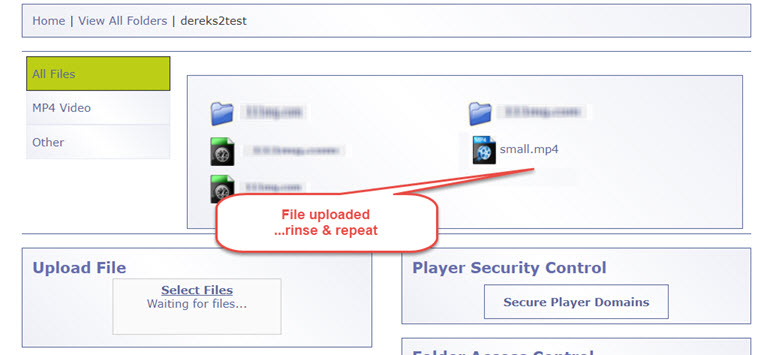
How to upload a file to Amazon s3 with the eZs3 Dashboard
How to upload your media file to an Amazon s3 folder using the eZs3 Dashboard
You should have already created a Folder to upload your files - if not, here's the guide
With your Folder in place, here is the step-by-step for uploading your files:
Start by clicking on Browse Files.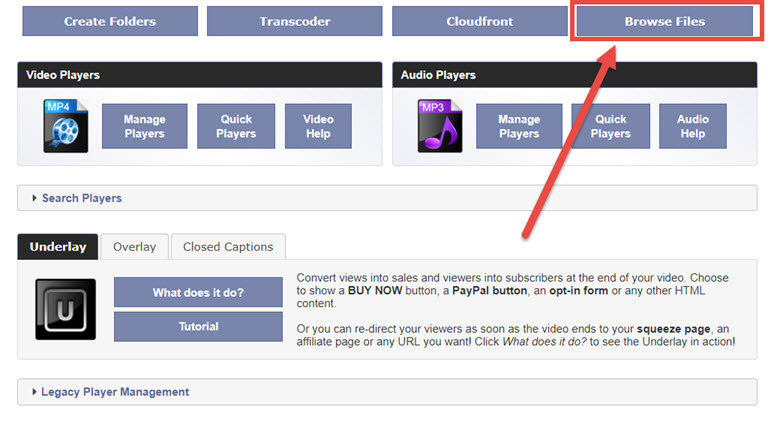
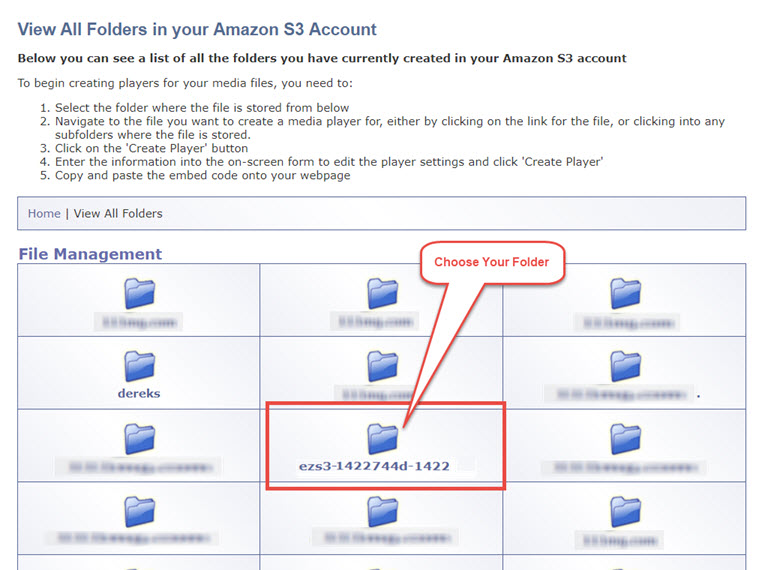
Select the folder that you want to upload into.
Use the Upload button at the bottom of the dashboard. Click it to launch the new uploader
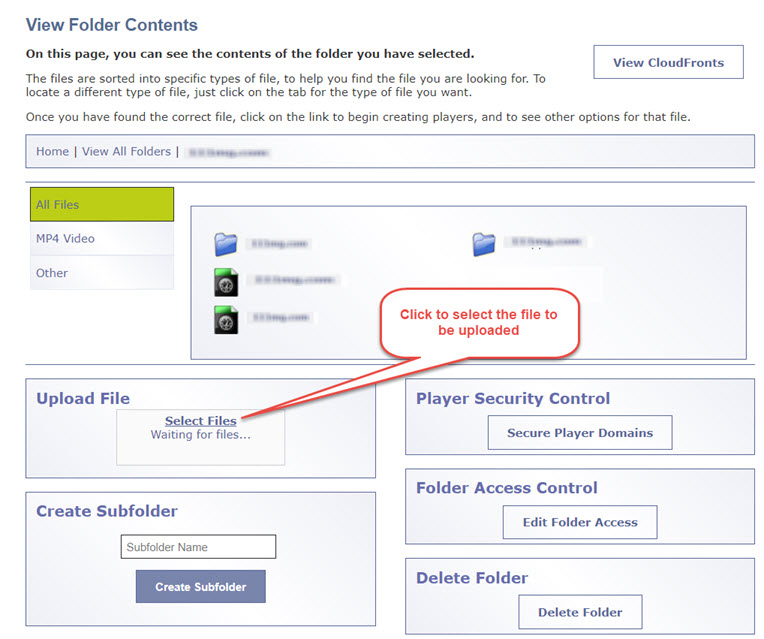
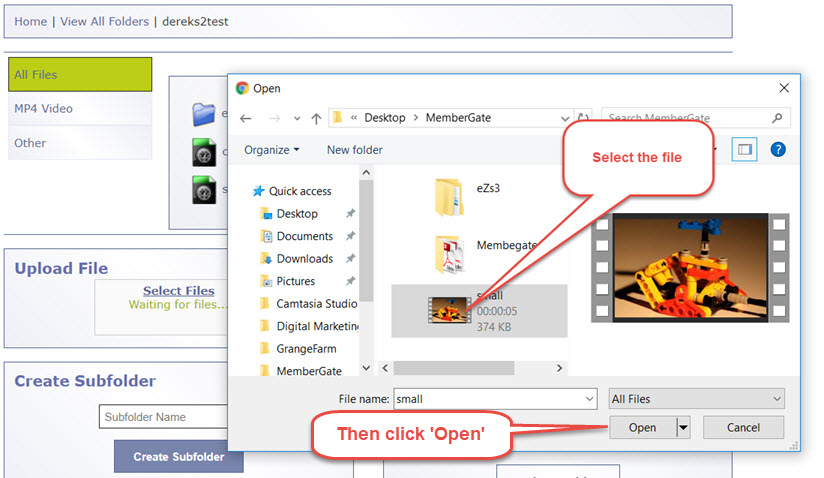
Select the file that you want to upload from your computer and click Open
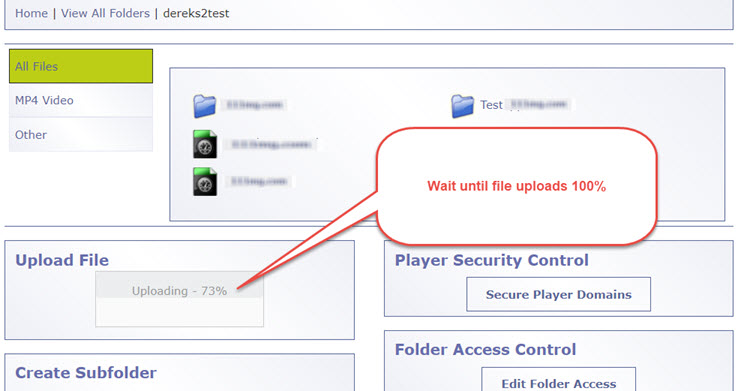
A progress bar will appear of your upload.
**Its important that you don't close the page whilst the upload is in progress.**
You can still do things in your eZs3 account if you have a page open in another tab or browser window, but do not close this tab or click anywhere on the page until you get the green success message and the file is listed in your folder
Success!
You can now upload another one